Disclosure: This article contains affiliate links. If you make a purchase through one of these links, FilmLocal may earn a commission at no extra cost to you.
The Best Storage for Video Editing Starts With Understanding Your Format
Before you spend a dollar, know what you’re cutting. RED Komodo shoots R3D at roughly 2GB per minute at mid-bitrates. Blackmagic RAW from a URSA Mini Pro 12K can hit 12GB per minute at Q0. ProRes RAW from a Sony FX9 lands somewhere in between. These aren’t abstract numbers. They determine whether a drive keeps up with your timeline or grinds it to a halt.
The minimum read speed you need for smooth 4K RAW playback is around 500MB/s. For 6K and above, you want 1,500MB/s or faster, which rules out every spinning hard drive ever made for primary editing storage. SATA SSDs top out at about 550MB/s, so they’re marginal at best. NVMe is where the serious work happens in 2026.
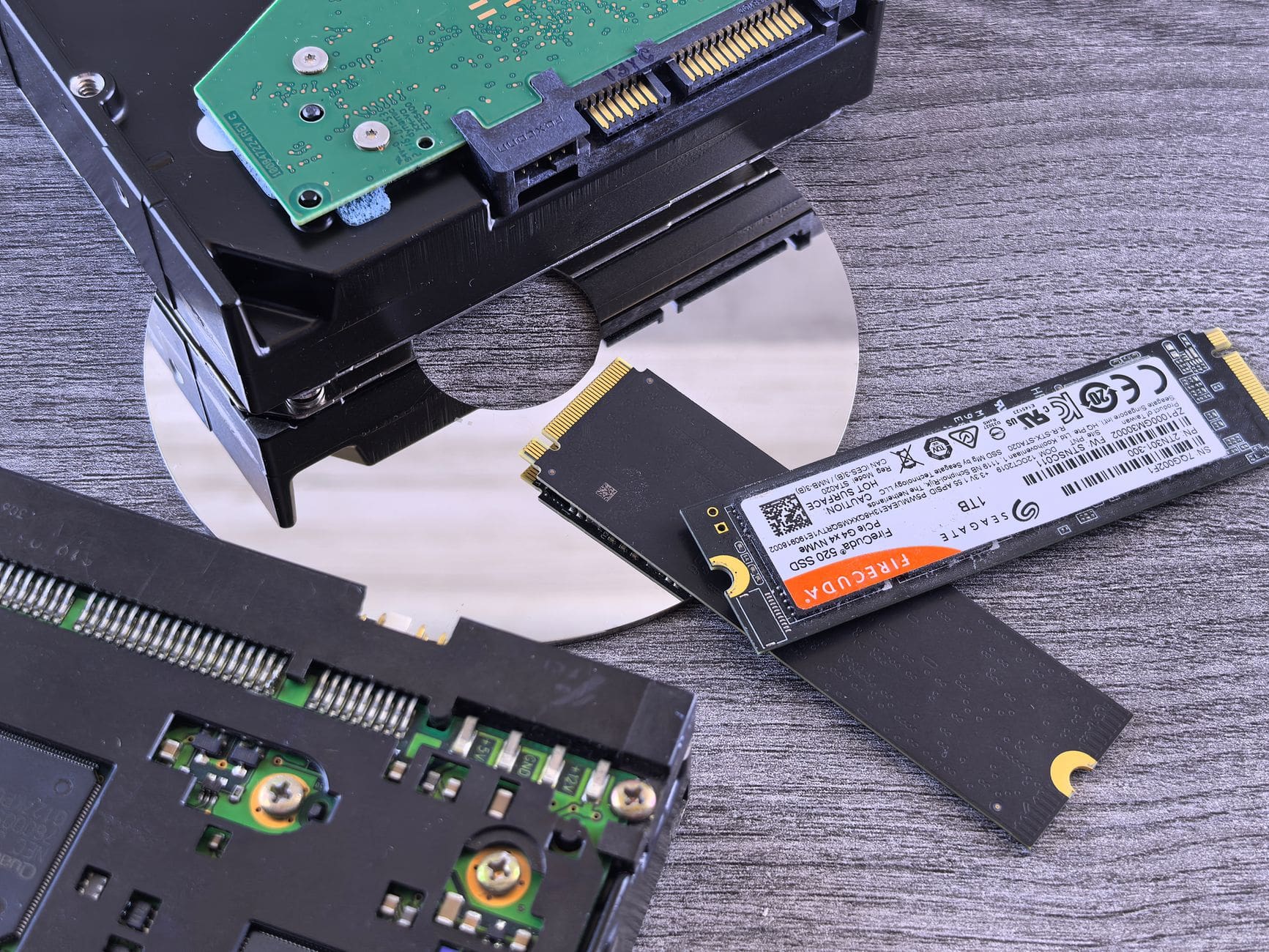
NVMe Internal Drives: The Workhorses
If you’re building or upgrading a desktop edit station, this is where you put your money first. Three drives stand out right now.
The Samsung 990 Pro in 2TB runs around $130 and hits sequential reads of 7,450MB/s. It runs cool, it’s consistent under sustained load, and Samsung’s reliability record is genuinely good. This is the safe pick for Premiere Pro and DaVinci Resolve users on a budget.
The WD Black SN850X in 2TB sits at roughly $120 and matches the 990 Pro almost spec-for-spec. Where it edges ahead is in random read performance, which matters more than sequential speeds in real-world editing with multi-track timelines. Both are PCIe 4.0 drives. If your motherboard supports PCIe 5.0, the Crucial T705 at around $180 for 2TB pushes 14,500MB/s sequential, which is overkill for most projects but genuinely useful for 8K+ workflows.
Honest take: for most editors cutting 4K to 6K content, a PCIe 4.0 NVMe is more than enough. Don’t chase PCIe 5.0 speeds unless your pipeline actually demands it. You’ll spend the savings on more capacity instead, and capacity is usually the real constraint.
Portable SSDs: On Set, In the Field, and Between Machines
Portable drives serve a different job. You’re using them to move media from set to suite, back up on location, or share footage with a colorist or VFX house. Speed matters, but so do ruggedness and compatibility.
The Samsung T9 in 4TB costs about $250 and delivers USB 3.2 Gen 2×2 speeds of up to 2,000MB/s read. It’s compact, shockproof, and the most plug-and-play portable option on the market right now. Works natively with Mac and Windows. If you’re a documentary shooter or a one-person-band editor bouncing between a laptop and a desktop, this is probably the best portable storage for video editing you’ll find at this price point.
The Sandisk Extreme Pro in 4TB runs around $220 and is slightly slower at 1,050MB/s read, but it’s IP65 rated and takes a beating. Set life is rough on gear. If you’re handing drives to production assistants on a commercial shoot, the ruggedness is worth the speed trade-off.
For Thunderbolt 4 users on Mac, the OWC Envoy Pro FX at around $200 for 1TB pushes up to 2,800MB/s. That’s desktop NVMe territory in a bus-powered pocket drive. Expensive per terabyte, but if you’re cutting ProRes RAW on a MacBook Pro on location, nothing else comes close.
RAID Arrays: When You Need Speed and Redundancy Together
Single drives fail. On a long-form documentary, a series, or any project where losing media is catastrophic, RAID becomes part of your infrastructure. But RAID is also the most misunderstood category in post-production storage.
RAID 0 stripes data across two or more drives for speed but offers zero redundancy. One drive dies and everything’s gone. Don’t use RAID 0 as your only copy of anything. RAID 1 mirrors data and gives you redundancy but no speed gain. RAID 5 and RAID 6 give you both, but need three or four drives minimum and a dedicated controller.
For most editors, the practical sweet spot is a dedicated NAS with RAID 5. The Synology DS923+ with four Seagate IronWolf Pro 8TB drives gives you about 22TB of usable space, gigabit (or 10GbE with an add-in card) network access, and real redundancy for around $1,400 total. That setup can serve multiple editors simultaneously on a small post team. Synology’s software is genuinely good and their DSM operating system makes managing volumes approachable even if you’re not a sysadmin.
For a single editor who wants a fast local RAID without the NAS complexity, the OWC Thunderbay 4 with four NVMe bays runs around $400 for the enclosure. Populate it with four 2TB NVMe drives in RAID 5 and you’ve got a fast, redundant local array that runs over Thunderbolt 3 or 4. Total cost lands around $900. Overkill for most, but if you’re cutting 6K RAW for broadcast, it earns its place.
Archiving: Cold Storage Done Right
Once a project wraps, it needs to live somewhere that isn’t your fast scratch drive. Cold storage is cheap, slow, and that’s fine because you’re not editing from it.
LTO tape is still the industry standard for long-term archiving. An LTO-9 drive from Quantum costs around $4,000, and each cartridge holds 18TB native for about $25. Expensive upfront, very cheap per terabyte at scale. Studios and broadcasters use it because it’s the most stable long-term medium available. The LTO Program publishes compatibility specs if you want to understand the ecosystem before committing.
For smaller operations, spinning HDDs in a dedicated enclosure work fine as a cold tier. The WD Gold 20TB runs about $280 and is designed for always-on environments. Buy two, use them as mirrored cold storage. It’s not glamorous but it’s reliable and cheap per gigabyte.
Cloud storage is worth mentioning but it’s not a replacement for local or tape. Frame.io, Backblaze B2, and AWS S3 are all solid for off-site redundancy. Backblaze B2 at $6 per terabyte per month is the most cost-effective for production-scale storage. But egress fees can add up fast if you ever need to pull large amounts of data back down. Factor that in before committing.
How To Build a Storage Stack That Actually Works
The smartest approach is a three-tier setup. Fast NVMe for active projects. A RAID array or NAS for projects in progress that need redundancy. Cold storage for finished work.
Your active project drive should hold only what you’re actively cutting. Move everything else off it. Editors who pile four projects onto one NVMe and then wonder why performance degrades are their own worst enemy.
If you’re newer to the industry and building your first setup, start with a 2TB NVMe for your system and a second 2TB NVMe as a dedicated project drive. Add a 4TB portable SSD for backups and transport. That three-drive setup costs under $500 total and handles almost every 4K workflow you’ll encounter. You can browse filmmaking articles on FilmLocal for more gear-specific advice as your workflow grows.
As you take on bigger jobs and start finding work through film production job listings, your storage needs will evolve. A narrative feature in RAW will expose every weak point in a setup that handled corporate video just fine. Plan for the project two sizes above where you are now, not the one you’re on today.
One last thing: whatever you spend on drives, spend proportionally on cable quality and proper enclosures. A $130 NVMe throttled by a cheap USB-C enclosure with a bad controller isn’t a $130 solution. It’s a headache. Check that your enclosure uses an ASMedia or Realtek controller with proper thermal management before you buy. If you’re shopping for enclosures and adapters alongside your drives, Adorama carries a solid range of NVMe enclosures, caddies, and cables with real stock and decent pricing.

Key Takeaways
Matching your storage to your actual format and workflow saves money and prevents the kind of mid-project failures that cost you clients.
- NVMe PCIe 4.0 drives like the Samsung 990 Pro or WD Black SN850X handle most 4K to 6K RAW workflows for around $120 to $130 for 2TB.
- For portable use, the Samsung T9 4TB at $250 is the most balanced option for speed, size, and cross-platform compatibility.
- RAID isn’t just for speed. Use it for redundancy on any project where losing media would cost you real money or a real client.
- Build a three-tier stack: fast NVMe for active edits, RAID or NAS for working redundancy, cold storage for archives.
- Cloud storage works as an off-site backup layer but factor in egress costs before relying on it as primary archive storage.
Buy for the project two sizes above what you’re cutting now. Storage is the one place you’ll always wish you had more, and scaling later costs more than getting it right once.
FAQs
What’s the minimum drive speed for editing 4K RAW footage?
You want at least 500MB/s read for compressed 4K formats like ProRes or H.265. For uncompressed or RAW formats from cameras like the RED Komodo or URSA, aim for 1,500MB/s or faster. Any current PCIe 4.0 NVMe easily clears that threshold.
Can I use a portable SSD as my main editing drive?
Yes, with caveats. Thunderbolt 4 portables like the OWC Envoy Pro FX perform on par with internal NVMe drives. USB 3.2 portables like the Samsung T9 are fine for most 4K workflows. The risk is heat throttling on long sessions, so keep an eye on temperatures if you’re doing sustained playback or exports.
Is RAID 0 safe to use for video editing?
RAID 0 gives you speed but zero redundancy. One drive fails and every byte on that array is gone. Don’t use it as your only copy. If you run RAID 0 for speed, back up to a separate drive constantly. Most working editors avoid it entirely in favour of fast single NVMe drives with proper backup workflows.
How much storage do I actually need for a feature film project?
It depends heavily on the camera and codec. A five-day shoot on a RED Monstro in 8K REDCODE at HQ settings can generate 10 to 15TB. A similar shoot on ARRI ALEXA 35 in ARRIRAW is closer to 20 to 30TB. Budget at least 3x your expected raw capture size to cover proxies, exports, and project duplicates.
Should I use cloud storage or physical drives for archiving completed projects?
Both, ideally. Physical drives or LTO tape give you fast, reliable local access and no recurring fees. Cloud storage like Backblaze B2 gives you off-site protection in case of physical loss or damage. Using both together is what professional post facilities do. If you’re choosing one, start with physical drives and add cloud when the budget allows.
Ready To Stop Letting Slow Storage Wreck Your Edit Suite?
The right storage setup for video editing isn’t about buying the most expensive gear. It’s about matching drive speed to your format, building in redundancy before you need it, and having a clear plan for where footage lives at every stage of post. Get the three-tier stack working, protect your active projects with a backup that actually runs, and you’ll spend your time editing instead of waiting on spinners or recovering from drive failures.